
- Overview
- System requirements
- Supported cloud providers
- Runner configuration
- Autoscaling algorithm and parameters
- How
concurrent,limitandIdleCountgenerate the upper limit of running machines - Autoscaling periods configuration
- Off Peak time mode configuration (Deprecated)
- Distributed runners caching
- Distributed container registry mirroring
- A complete example of
config.toml
Runners autoscale configuration
The autoscale feature was introduced in GitLab Runner 1.1.0.
Autoscale provides the ability to utilize resources in a more elastic and dynamic way.
Thanks to Runners being able to autoscale, your infrastructure contains only as much build instances as necessary at anytime. If you configure the Runner to only use autoscale, the system on which the Runner is installed acts as a bastion for all the machines it creates.
Overview
When this feature is enabled and configured properly, jobs are executed on
machines created on demand. Those machines, after the job is finished, can
wait to run the next jobs or can be removed after the configured IdleTime.
In case of many cloud providers this helps to utilize the cost of already used
instances.
Below, you can see a real life example of the runners autoscale feature, tested on GitLab.com for the GitLab Community Edition project:
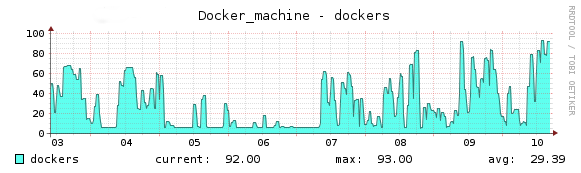
Each machine on the chart is an independent cloud instance, running jobs inside of Docker containers.
System requirements
Before configuring autoscale, you must:
- Prepare your own environment.
- Optionally use a forked version of Docker machine supplied by GitLab, which has some additional fixes.
Supported cloud providers
The autoscale mechanism is based on Docker Machine. All supported virtualization/cloud provider parameters, are available at the Docker Machine drivers documentation.
Runner configuration
In this section we will describe only the significant parameters from the autoscale feature point of view. For more configurations details read the advanced configuration.
Runner global options
| Parameter | Value | Description |
|---|---|---|
concurrent
| integer | Limits how many jobs globally can be run concurrently. This is the most upper limit of number of jobs using all defined runners, local and autoscale. Together with limit (from [[runners]] section) and IdleCount (from [runners.machine] section) it affects the upper limit of created machines.
|
[[runners]] options
| Parameter | Value | Description |
|---|---|---|
executor
| string | To use the autoscale feature, executor must be set to docker+machine or docker-ssh+machine.
|
limit
| integer | Limits how many jobs can be handled concurrently by this specific token. 0 simply means don’t limit. For autoscale it’s the upper limit of machines created by this provider (in conjunction with concurrent and IdleCount).
|
[runners.machine] options
Configuration parameters details can be found
in GitLab Runner - Advanced Configuration - The [runners.machine] section.
[runners.cache] options
Configuration parameters details can be found
in GitLab Runner - Advanced Configuration - The [runners.cache] section
Additional configuration information
There is also a special mode, when you set IdleCount = 0. In this mode,
machines are always created on-demand before each job (if there is no
available machine in Idle state). After the job is finished, the autoscaling
algorithm works
the same as it is described below.
The machine is waiting for the next jobs, and if no one is executed, after
the IdleTime period, the machine is removed. If there are no jobs, there
are no machines in Idle state.
Autoscaling algorithm and parameters
The autoscaling algorithm is based on three main parameters: IdleCount,
IdleTime and limit.
We say that each machine that does not run a job is in Idle state. When
GitLab Runner is in autoscale mode, it monitors all machines and ensures that
there is always an IdleCount of machines in Idle state.
At the same time, GitLab Runner is checking the duration of the Idle state of
each machine. If the time exceeds the IdleTime value, the machine is
automatically removed.
Example: Let’s suppose, that we have configured GitLab Runner with the following autoscale parameters:
[[runners]]
  limit = 10
  # (...)
  executor = "docker+machine"
  [runners.machine]
    IdleCount = 2
    IdleTime = 1800
    # (...)
At the beginning, when no jobs are queued, GitLab Runner starts two machines
(IdleCount = 2), and sets them in Idle state. Notice that we have also set
IdleTime to 30 minutes (IdleTime = 1800).
Now, let’s assume that 5 jobs are queued in GitLab CI. The first 2 jobs are
sent to the Idle machines of which we have two. GitLab Runner now notices that
the number of Idle is less than IdleCount (0 < 2), so it starts 2 new
machines. Then, the next 2 jobs from the queue are sent to those newly created
machines. Again, the number of Idle machines is less than IdleCount, so
GitLab Runner starts 2 new machines and the last queued job is sent to one of
the Idle machines.
We now have 1 Idle machine, so GitLab Runner starts another 1 new machine to
satisfy IdleCount. Because there are no new jobs in queue, those two
machines stay in Idle state and GitLab Runner is satisfied.
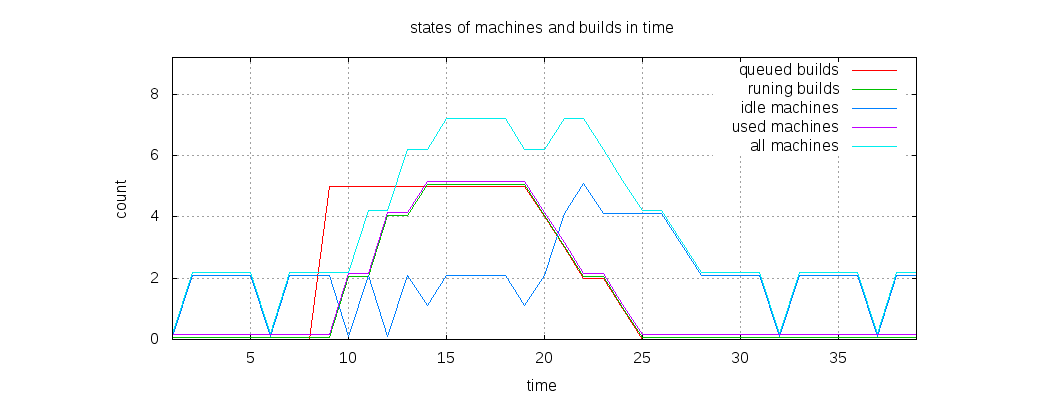
This is what happened: We had 2 machines, waiting in Idle state for new jobs. After the 5 jobs where queued, new machines were created, so in total we had 7 machines. Five of them were running jobs, and 2 were in Idle state, waiting for the next jobs.
The algorithm will still work in the same way; GitLab Runner will create a new
Idle machine for each machine used for the job execution until IdleCount
is satisfied. Those machines will be created up to the number defined by
limit parameter. If GitLab Runner notices that there is a limit number of
total created machines, it will stop autoscaling, and new jobs will need to
wait in the job queue until machines start returning to Idle state.
In the above example we will always have two idle machines. The IdleTime
applies only when we are over the IdleCount, then we try to reduce the number
of machines to IdleCount.
Scaling down:
After the job is finished, the machine is set to Idle state and is waiting
for the next jobs to be executed. Let’s suppose that we have no new jobs in
the queue. After the time designated by IdleTime passes, the Idle machines
will be removed. In our example, after 30 minutes, all machines will be removed
(each machine after 30 minutes from when last job execution ended) and GitLab
Runner will start to keep an IdleCount of Idle machines running, just like
at the beginning of the example.
So, to sum up:
- We start the Runner
- Runner creates 2 idle machines
- Runner picks one job
- Runner creates one more machine to fulfill the strong requirement of always having the two idle machines
- Job finishes, we have 3 idle machines
- When one of the three idle machines goes over
IdleTimefrom the time when last time it picked the job it will be removed - The Runner will always have at least 2 idle machines waiting for fast picking of the jobs
Below you can see a comparison chart of jobs statuses and machines statuses in time:
How concurrent, limit and IdleCount generate the upper limit of running machines
There doesn’t exist a magic equation that will tell you what to set limit or
concurrent to. Act according to your needs. Having IdleCount of Idle
machines is a speedup feature. You don’t need to wait 10s/20s/30s for the
instance to be created. But as a user, you’d want all your machines (for which
you need to pay) to be running jobs, not stay in Idle state. So you should
have concurrent and limit set to values that will run the maximum count of
machines you are willing to pay for. As for IdleCount, it should be set to a
value that will generate a minimum amount of not used machines when the job
queue is empty.
Let’s assume the following example:
concurrent=20

[[runners]]
  limit = 40
  [runners.machine]
    IdleCount = 10
In the above scenario the total amount of machines we could have is 30. The
limit of total machines (building and idle) can be 40. We can have 10 idle
machines but the concurrent jobs are 20. So in total we can have 20
concurrent machines running jobs and 10 idle, summing up to 30.
But what happens if the limit is less than the total amount of machines that
could be created? The example below explains that case:
concurrent=20

[[runners]]
  limit = 25
  [runners.machine]
    IdleCount = 10
In this example we will have at most 20 concurrent jobs, and at most 25
machines created. In the worst case scenario regarding idle machines, we will
not be able to have 10 idle machines, but only 5, because the limit is 25.
Autoscaling periods configuration
Introduced in GitLab Runner 13.0.
Autoscaling can be configured to have different values depending on the time period. Organizations might have regular times when spikes of jobs are being executed, and other times with few to no jobs. For example, most commercial companies work from Monday to Friday in fixed hours, like 10am to 6pm. On nights and weekends for the rest of the week, and on the weekends, no pipelines are started.
These periods can be configured with the help of [[runners.machine.autoscaling]] sections.
Each of them supports setting IdleCount and IdleTime based on a set of Periods.
How autoscaling periods work
In the [runners.machine] settings, you can add multiple [[runners.machine.autoscaling]] sections, each one with its own IdleCount, IdleTime, Periods and Timezone properties. A section should be defined for each configuration, proceeding in order from the most general scenario to the most specific scenario.
All sections will be parsed and the last one to match the current time will be active. If none matches, the values from the root of [runners.machine] are used.
For example:
[runners.machine]
  MachineName = "auto-scale-%s"
  MachineDriver = "digitalocean"
  IdleCount = 10
  IdleTime = 1800
  [[runners.machine.autoscaling]]
    Periods = ["* * 9-17 * * mon-fri *"]
    IdleCount = 50
    IdleTime = 3600
    Timezone = "UTC"
  [[runners.machine.autoscaling]]
    Periods = ["* * * * * sat,sun *"]
    IdleCount = 5
    IdleTime = 60
    Timezone = "UTC"
In this configuration, every weekday between 9 and 17 UTC, machines will be overprovisioned to handle the large traffic during operating hours. On the weekend, IdleCount drops to 5 to account for the drop in traffic.
During the rest of the time the values will be taken from the defaults in the root - IdleCount = 10 and IdleTime = 1800.
You can specify the Timezone of a period, for example "Australia/Sydney". If you don’t,
the system setting of the host machine of every runner will be used. This
default can be stated as Timezone = "Local" explicitly.
More information about the syntax of [[runner.machine.autoscaling]] sections can be found
in GitLab Runner - Advanced Configuration - The [runners.machine] section.
Off Peak time mode configuration (Deprecated)
This setting is deprecated and will be removed in 14.0. Use autoscaling periods instead. If both settings are used, the Off Peak settings will be ignored.
Autoscale can be configured with the support for Off Peak time mode periods.
What is Off Peak time mode period?
Some organizations can select a regular time periods when no work is done. These time periods are called Off Peak.
Organizations where Off Peak time periods occurs probably don’t want
to pay for the Idle machines when it’s certain that no jobs will be
executed in this time. Especially when IdleCount is set to a big number.
How it is working?
Configuration of Off Peak is done by four parameters: OffPeakPeriods,
OffPeakTimezone, OffPeakIdleCount and OffPeakIdleTime. The
OffPeakPeriods setting contains an array of cron-style patterns defining
when the Off Peak time mode should be set on. For example:
[runners.machine]
  OffPeakPeriods = [
    "* * 0-8,18-23 * * mon-fri *",
    "* * * * * sat,sun *"
  ]
will enable the Off Peak periods described above, so on weekdays from 12:00am through 8:59am and 6:00pm through 11:59pm, plus all of Saturday and Sunday. Machines scheduler is checking all patterns from the array and if at least one of them describes current time, then the Off Peak time mode is enabled.
When the Off Peak time mode is enabled machines scheduler use
OffPeakIdleCount instead of IdleCount setting and OffPeakIdleTime
instead of IdleTime setting. The autoscaling algorithm is not changed,
only the parameters. When machines scheduler discovers that none from
the OffPeakPeriods pattern is fulfilled then it switches back to
IdleCount and IdleTime settings.
Distributed runners caching
To speed up your jobs, GitLab Runner provides a cache mechanism where selected directories and/or files are saved and shared between subsequent jobs.
This is working fine when jobs are run on the same host, but when you start using the Runners autoscale feature, most of your jobs will be running on a new (or almost new) host, which will execute each job in a new Docker container. In that case, you will not be able to take advantage of the cache feature.
To overcome this issue, together with the autoscale feature, the distributed Runners cache feature was introduced.
It uses configured object storage server to share the cache between used Docker hosts. When restoring and archiving the cache, GitLab Runner will query the server and will download or upload the archive respectively.
To enable distributed caching, you have to define it in config.toml using the
[runners.cache] directive:
[[runners]]
  limit = 10
  executor = "docker+machine"
  [runners.cache]
    Type = "s3"
    Path = "path/to/prefix"
    Shared = false
    [runners.cache.s3]
      ServerAddress = "s3.example.com"
      AccessKey = "access-key"
      SecretKey = "secret-key"
      BucketName = "runner"
      Insecure = false
In the example above, the S3 URLs follow the structure
http(s)://<ServerAddress>/<BucketName>/<Path>/runner/<runner-id>/project/<id>/<cache-key>.
To share the cache between two or more Runners, set the Shared flag to true.
That will remove the runner token from the URL (runner/<runner-id>) and
all configured Runners will share the same cache. Remember that you can also
set Path to separate caches between Runners when cache sharing is enabled.
Distributed container registry mirroring
To speed up jobs executed inside of Docker containers, you can use the Docker registry mirroring service. This will provide a proxy between your Docker machines and all used registries. Images will be downloaded once by the registry mirror. On each new host, or on an existing host where the image is not available, it will be downloaded from the configured registry mirror.
Provided that the mirror will exist in your Docker machines LAN, the image downloading step should be much faster on each host.
To configure the Docker registry mirroring, you have to add MachineOptions to
the configuration in config.toml:
[[runners]]
  limit = 10
  executor = "docker+machine"
  [runners.machine]
    (...)
    MachineOptions = [
      (...)
      "engine-registry-mirror=http://10.11.12.13:12345"
    ]
Where 10.11.12.13:12345 is the IP address and port where your registry mirror
is listening for connections from the Docker service. It must be accessible for
each host created by Docker Machine.
A complete example of config.toml
The config.toml below uses the digitalocean Docker Machine driver:
concurrent = 50   # All registered Runners can run up to 50 concurrent jobs

[[runners]]
  url = "https://gitlab.com"
  token = "RUNNER_TOKEN"             # Note this is different from the registration token used by `gitlab-runner register`
  name = "autoscale-runner"
  executor = "docker+machine"        # This Runner is using the 'docker+machine' executor
  limit = 10                         # This Runner can execute up to 10 jobs (created machines)
  [runners.docker]
    image = "ruby:2.6"               # The default image used for jobs is 'ruby:2.6'
  [runners.machine]
    IdleCount = 5                    # There must be 5 machines in Idle state - when Off Peak time mode is off
    IdleTime = 600                   # Each machine can be in Idle state up to 600 seconds (after this it will be removed) - when Off Peak time mode is off
    MaxBuilds = 100                  # Each machine can handle up to 100 jobs in a row (after this it will be removed)
    MachineName = "auto-scale-%s"    # Each machine will have a unique name ('%s' is required)
    MachineOptions = "google" # Refer to Docker Machine docs on how to authenticate: https://docs.docker.com/machine/drivers/gce/#credentials
    MachineDrive = [
      "google-project=GOOGLE-PROJECT-ID",
      "google-zone=GOOGLE-ZONE", # e.g. 'us-central-1'
      "google-machine-type=GOOGLE-MACHINE-TYPE", # e.g. 'n1-standard-8'
      "google-machine-image=ubuntu-os-cloud/global/images/family/ubuntu-1804-lts",
      "google-username=root",
      "google-use-internal-ip",
      "engine-registry-mirror=https://mirror.gcr.io"
    ]
    [[runners.machine.autoscaling]]  # Define periods with different settings
      Periods = ["* * 9-17 * * mon-fri *"] # Every workday between 9 and 17 UTC
      IdleCount = 50
      IdleTime = 3600
      Timezone = "UTC"
    [[runners.machine.autoscaling]]
      Periods = ["* * * * * sat,sun *"] # During the weekends
      IdleCount = 5
      IdleTime = 60
      Timezone = "UTC"
  [runners.cache]
    Type = "s3"
    [runners.cache.s3]
      ServerAddress = "s3-eu-west-1.amazonaws.com"
      AccessKey = "AMAZON_S3_ACCESS_KEY"
      SecretKey = "AMAZON_S3_SECRET_KEY"
      BucketName = "runner"
      Insecure = false
Note that the MachineOptions parameter contains options for the digitalocean
driver which is used by Docker Machine to spawn machines hosted on Digital Ocean,
and one option for Docker Machine itself (engine-registry-mirror).